
 OpenPost
Connect LinkedIn member profiles and, with approved access, Organization Pages.
OpenPost connects a LinkedIn member through OAuth. It can also offer Organization Pages when your LinkedIn app has Community Management access and the member administers those Pages.
Before you start
- Use a public HTTPS address for OpenPost and set
OPENPOST_APP_URLto that origin. - Have a LinkedIn developer account and a LinkedIn member account for testing.
- Decide whether you need member publishing only or Organization Pages. Page access needs LinkedIn approval; turning on an OpenPost setting does not grant it.
Create and configure the LinkedIn app
-
In the LinkedIn Developer Portal, create an app and associate it with the LinkedIn Page requested by the portal. Copy its Client ID and Client Secret from Auth.
-
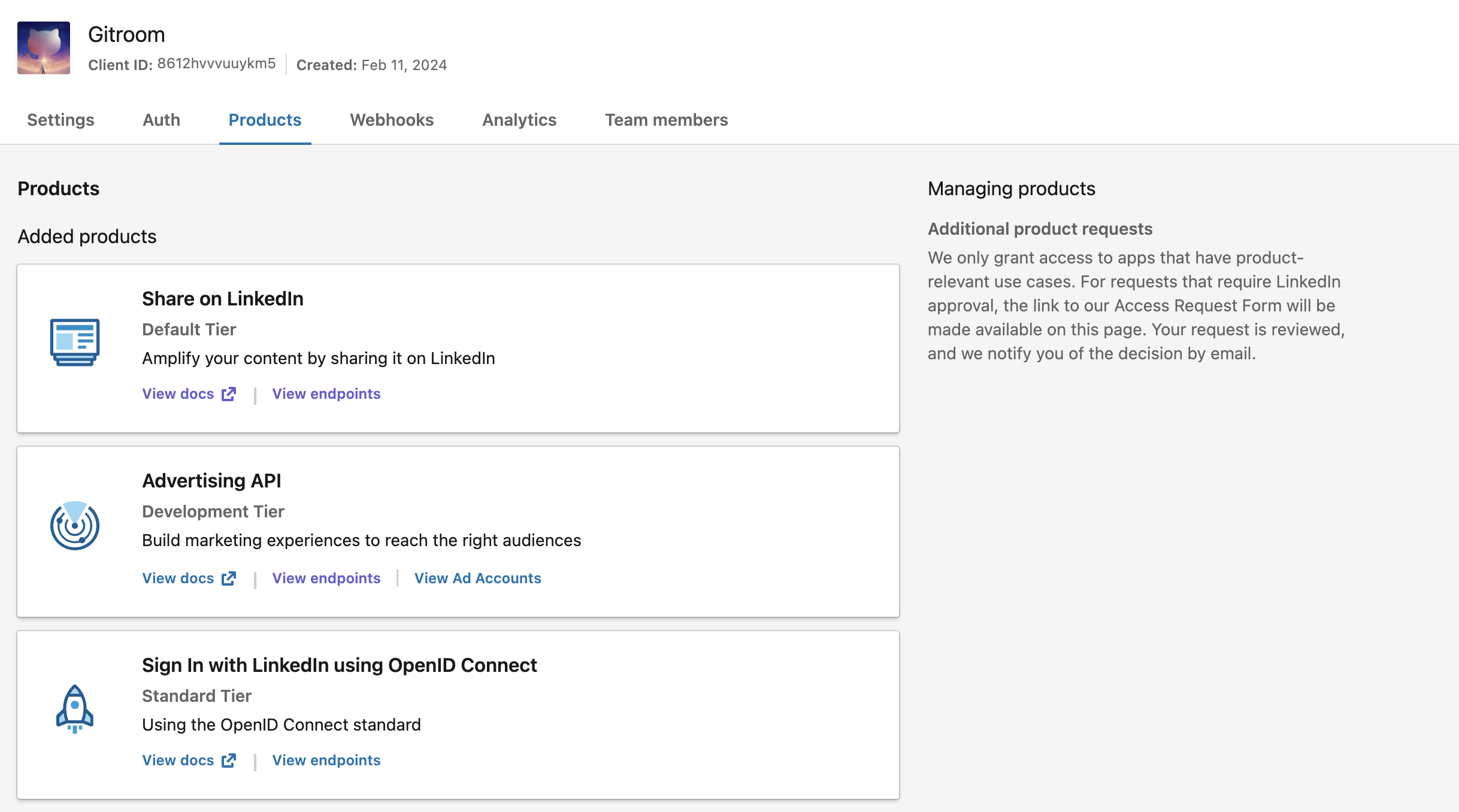
In Products, add Sign In with LinkedIn using OpenID Connect and Share on LinkedIn. These provide member identity and
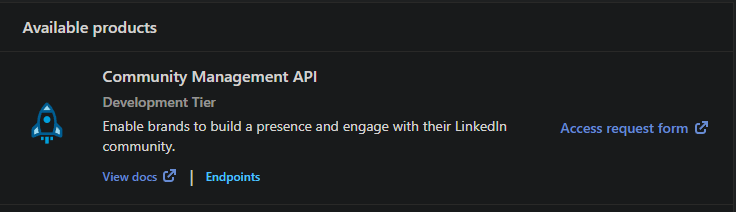
w_member_socialpublishing access. For Pages, request the appropriate Community Management product and obtainrw_organization_admin,w_organization_social, andr_organization_socialapproval. OpenPost requests member analytics scopes when Organization support is enabled. -
In Auth → OAuth 2.0 settings, add this exact Authorized redirect URL:
https://post.example.com/api/v1/accounts/linkedin/callback -
For a member-only app using the two self-service products, set
OPENPOST_DISABLE_LINKEDIN_THREAD_REPLIES=truein your deployment before the first connection. OpenPost otherwise requestsw_member_social_feed, which needs additional LinkedIn approval and can cause sign-in to fail. Keep replies enabled only when your app has that permission. -
Check the app's approved products and scopes in Auth. The member used to connect a Page must have an approved
ADMINISTRATORrole for that Page.
LinkedIn describes self-service products and permissions and Organization roles.
Save the app in OpenPost
Use this provider entry when saving your app credentials. Replace the example domain with your OpenPost address.
[
  {
    "provider": "linkedin",
    "client_id": "your-linkedin-client-id",
    "client_secret": "your-linkedin-client-secret",
    "redirect_uri": "https://post.example.com/api/v1/accounts/linkedin/callback"
  }
]
Store the JSON in your deployment secret store, preferably as a file referenced by OPENPOST_PROVIDER_APPS_FILE. An instance administrator can instead save the ID, secret, and callback in Settings → Instance → Configuration → Provider apps. Environment entries take precedence over saved rows. Follow saving provider credentials to apply the change and reload OpenPost. See self-hosted configuration for the instance settings.
For Organization Pages, also set OPENPOST_LINKEDIN_ORGANIZATIONS_ENABLED=true in the deployment environment and recreate the container. Leave it false if your app lacks the approved Page scopes. LinkedIn threads publish later segments as comments on the first post. Enable them only after LinkedIn approves w_member_social_feed, then reconnect the account.
Connect and test
- Open Settings → Workspace → Social accounts, select LinkedIn, and complete LinkedIn consent.
- Select the member profile and, if enabled and offered, any eligible Organization Pages. Each selection becomes a separate OpenPost account.
- Publish a short text test to the intended account. Check its result in OpenPost and on LinkedIn before scheduling real content. Enable optional Comments and replies or Analytics per account only after checking your approved access.
If it does not work
- Redirect mismatch: Compare the portal URL, JSON
redirect_uri, and publicOPENPOST_APP_URLcharacter for character, including HTTPS and trailing slashes. - No Organization Pages: Confirm the Community Management approval, all three Page scopes,
OPENPOST_LINKEDIN_ORGANIZATIONS_ENABLED=true, and the member's approved Page administrator role. - Connection works but publishing or analytics fails: Review the LinkedIn response and app permissions. Reconnect the account after adding scopes. A connected member profile does not prove Page, comment, or analytics access.